
There’s nothing more frustrating than waiting several minutes for your laptop to start, watching programs freeze, or hearing the cooling fan run constantly while you’re trying to work or study. Whether you’re attending online classes, editing photos, browsing the web, or playing games, a slow laptop can waste time and reduce productivity.
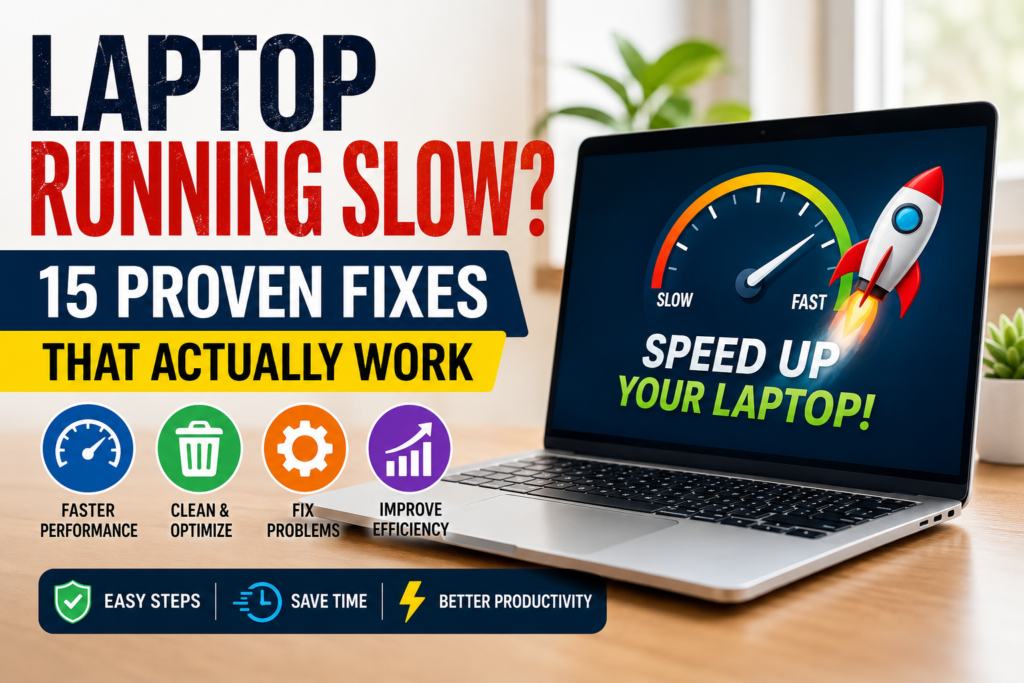
The good news is that you don’t always need to buy a new laptop. In many cases, slow performance is caused by software issues, unnecessary startup programs, low storage space, outdated drivers, or temporary files. These problems can often be fixed in just a few minutes.
In this guide, you’ll learn 15 proven ways to speed up a slow Windows laptop. Every method is beginner-friendly, doesn’t require advanced technical knowledge, and can significantly improve your laptop’s performance when applied correctly.
Let’s get started.
Table of Contents
- Why Is Your Laptop Running Slow?
- Fix #1: Restart Your Laptop
- Fix #2: Disable Unnecessary Startup Programs
- Fix #3: Free Up Storage Space
- Fix #4: Delete Temporary Files
- Fix #5: Uninstall Unused Programs
- Fix #6: Scan for Malware and Viruses
- Fix #7: Update Windows
- Fix #8: Update Drivers
- Fix #9: Reduce Background Apps
- Fix #10: Adjust Windows Performance Settings
- Fix #11: Upgrade to an SSD
- Fix #12: Add More RAM
- Fix #13: Clean Dust from Your Laptop
- Fix #14: Prevent Overheating
- Fix #15: Reset or Reinstall Windows
- Frequently Asked Questions
- Final Thoughts
Why Is Your Laptop Running Slow?
Before trying different solutions, it’s helpful to understand what causes laptops to slow down over time.
Some of the most common reasons include:
- Too many startup applications
- Low available storage space
- Malware or viruses
- Outdated Windows or drivers
- Too many background processes
- Excessive temporary files
- Aging hard drives (HDDs)
- Insufficient RAM
- Overheating
- Hardware wear over time
Identifying the real cause makes it much easier to apply the right solution.
Fix #1: Restart Your Laptop
Difficulty: ⭐ Easy
Time Required: 2–5 minutes
Many people leave their laptops running for days or even weeks without restarting them. Over time, background processes, memory usage, and temporary system files build up, making Windows slower.
A simple restart clears temporary memory (RAM), closes unnecessary processes, and gives your system a fresh start.
How to Restart Properly
- Save all your work.
- Click the Start button.
- Select the Power icon.
- Click Restart instead of Shut Down.
After the restart, avoid opening dozens of applications at once. Check whether your laptop feels faster before trying more advanced fixes.
Why It Works
Restarting:
- Clears temporary memory
- Stops frozen background processes
- Resets Windows services
- Fixes minor software glitches
Pro Tip
If you only close your laptop lid every day, try restarting it at least once every few days. This simple habit alone can noticeably improve performance.
Fix #2: Disable Unnecessary Startup Programs
Difficulty: ⭐ Easy
Time Required: 5 minutes
One of the biggest reasons laptops become slow is having too many applications launch automatically when Windows starts.
Programs like Discord, Spotify, Adobe Creative Cloud, Microsoft Teams, Steam, Zoom, OneDrive, and many others often run automatically—even when you don’t need them immediately.
The more startup apps you have, the longer Windows takes to boot.
How to Disable Startup Apps
- Press Ctrl + Shift + Esc to open Task Manager.
- Click Startup apps (or the Startup tab on older Windows versions).
- Look at the Startup Impact column.
- Right-click apps you don’t need at startup.
- Select Disable.
Only disable apps you’re familiar with. Avoid turning off essential security software or Windows system services.
Examples of Apps You Can Usually Disable
- Spotify
- Discord
- Steam
- Zoom
- Skype
- Adobe Updater
- Microsoft Teams
- Epic Games Launcher
Benefits
After reducing startup apps, you may notice:
- Faster boot times
- Lower RAM usage
- Better CPU performance
- Less background activity
Many users are surprised by how much faster their laptop starts after disabling just a few unnecessary startup programs.
Fix #3: Free Up Storage Space
Difficulty: ⭐ Easy
Time Required: 10–20 minutes
When your laptop’s storage is nearly full, Windows has less room for updates, virtual memory, temporary files, and application data. This can lead to slower performance, longer loading times, and even system errors.
As a general rule, try to keep at least 15–20% of your storage free.
Check Your Storage
- Open Settings.
- Go to System → Storage.
- Review how much space is available.
If your drive is almost full, it’s time to clean it up.
Ways to Free Up Space
- Empty the Recycle Bin.
- Delete unnecessary downloads.
- Remove duplicate files.
- Move photos and videos to cloud storage or an external drive.
- Delete old installers and ZIP files.
- Uninstall applications you no longer use.
- Clear temporary files (covered in the next section).
Storage Cleanup Tips
Focus on removing large files first. Videos, old game installations, ISO files, and duplicate media often consume the most space.
If you use cloud services, consider enabling automatic backup for photos and documents so you can safely remove local copies when appropriate.
Why It Works
Having enough free storage helps Windows:
- Run updates smoothly
- Create temporary files efficiently
- Improve application loading times
- Reduce system slowdowns caused by a nearly full drive
If your laptop still uses a traditional hard disk (HDD), keeping free space available is even more important for maintaining good performance.
Coming up in Part 2: You’ll learn how to delete temporary files, uninstall unused programs, scan for malware, and update Windows to eliminate common causes of slow performance.
Laptop Running Slow? 15 Proven Fixes That Actually Work (Part 2)
In the previous part, you learned how restarting your laptop, disabling unnecessary startup apps, and freeing up storage can noticeably improve performance. Now let’s continue with four more proven fixes that solve some of the most common causes of a slow Windows laptop.
Fix #4: Delete Temporary Files
Difficulty: ⭐ Easy
Time Required: 5–10 minutes
Every time you browse the internet, install software, or use Windows, temporary files are created. These files are meant to help programs run efficiently, but over time they can pile up and take up valuable storage space. In some cases, corrupted temporary files can even cause applications to slow down or crash.
Regularly removing temporary files helps Windows run more smoothly and frees up storage.
Method 1: Use Windows Storage Cleanup
- Open Settings.
- Go to System → Storage.
- Click Temporary files.
- Windows will scan your computer.
- Select the files you want to remove.
- Click Remove files.
Method 2: Delete Temporary Files Manually
- Press Windows + R.
- Type %temp% and press Enter.
- Select all files using Ctrl + A.
- Press Delete.
- Skip any files currently in use.
You can also repeat the process by typing temp in the Run dialog.
Benefits
Cleaning temporary files can:
- Free several gigabytes of storage
- Improve Windows responsiveness
- Speed up software loading
- Reduce unnecessary disk activity
Pro Tip
Enable Storage Sense in Windows to automatically remove temporary files and keep your storage optimized without manual cleanup.
Fix #5: Uninstall Programs You No Longer Use
Difficulty: ⭐ Easy
Time Required: 10–20 minutes
Many laptops accumulate software over the years. Old games, trial programs, editing tools, browser toolbars, and unused utilities continue occupying storage and may even run background services without your knowledge.
Removing software you never use is one of the easiest ways to improve performance.
How to Uninstall Programs
- Open Settings.
- Go to Apps → Installed Apps.
- Sort applications by Size or Install Date.
- Find programs you no longer need.
- Click the three-dot menu and choose Uninstall.
Alternatively:
- Press Windows + R
- Type appwiz.cpl
- Press Enter
- Remove unwanted software from the Control Panel.
Programs You Might Consider Removing
- Old games you no longer play
- Trial antivirus software
- Duplicate photo editors
- Unused video editing software
- Browser toolbars
- Applications installed years ago but never opened
Be Careful
Do not uninstall:
- Graphics drivers (Intel, AMD, NVIDIA)
- Windows system components
- Security software unless replacing it
- Unknown hardware drivers
If you’re unsure about a program, search its name online before removing it.
Benefits
Removing unnecessary software can:
- Recover valuable storage
- Reduce background processes
- Improve boot speed
- Lower RAM and CPU usage
Fix #6: Scan for Malware and Viruses
Difficulty: ⭐ Easy
Time Required: 10–30 minutes
Sometimes a slow laptop isn’t caused by Windows at all—it may be the result of malware, spyware, adware, or unwanted programs running silently in the background.
These threats can consume CPU power, internet bandwidth, and memory while also putting your personal data at risk.
Even if you don’t notice obvious signs, running a full scan is a smart maintenance habit.
Using Windows Security
Windows includes Microsoft Defender, which provides excellent protection for most users.
- Open Windows Security.
- Select Virus & threat protection.
- Click Scan options.
- Choose Full scan.
- Click Scan now.
Allow the scan to complete, even if it takes some time.
Warning Signs of Malware
Your laptop may be infected if you notice:
- Frequent pop-up advertisements
- Browser redirects
- Unknown applications installing themselves
- High CPU usage while idle
- Slow internet speeds
- Fans running constantly
- Antivirus repeatedly showing alerts
Safe Browsing Tips
To reduce the risk of infection:
- Download software only from trusted websites.
- Avoid pirated programs and cracked software.
- Keep Windows Security enabled.
- Don’t click suspicious email attachments.
- Update your browser regularly.
Benefits
A malware-free system usually means:
- Faster performance
- Better security
- Improved battery life
- Reduced background activity
Fix #7: Update Windows
Difficulty: ⭐ Easy
Time Required: 10–30 minutes
Running an outdated version of Windows can cause compatibility issues, security vulnerabilities, and performance problems.
Microsoft regularly releases updates that improve stability, fix bugs, enhance security, and optimize system performance.
Keeping Windows updated ensures your laptop runs as efficiently as possible.
How to Update Windows
- Open Settings.
- Select Windows Update.
- Click Check for updates.
- Download and install available updates.
- Restart your laptop if prompted.
After restarting, allow Windows a few minutes to complete background optimization before judging performance.
Why Updates Matter
Windows updates often include:
- Performance improvements
- Security patches
- Driver compatibility fixes
- Battery optimizations
- Bug fixes
- Better hardware support
Common Mistake
Many users postpone updates for weeks or months. While occasional delays are understandable, ignoring updates for long periods can lead to slower performance and software compatibility issues.
Pro Tip
If your laptop becomes temporarily slower immediately after a major update, don’t panic. Windows may still be indexing files, installing drivers, and optimizing background processes. Performance usually returns to normal after some time.
Quick Recap
After completing the first seven fixes, you’ve already addressed many of the biggest causes of a slow laptop:
- ✅ Restarted Windows
- ✅ Disabled unnecessary startup programs
- ✅ Freed up storage space
- ✅ Deleted temporary files
- ✅ Removed unused software
- ✅ Scanned for malware
- ✅ Installed the latest Windows updates
For many users, these steps alone make a significant difference. If your laptop is still slow, don’t worry—the next fixes focus on drivers, background apps, hardware upgrades, and overheating, which can have an even bigger impact on performance.
Coming up in Part 3: Learn how to update drivers, reduce background apps, optimize Windows performance settings, and discover why upgrading to an SSD is one of the best investments you can make for an older laptop.
Laptop Running Slow? 15 Proven Fixes That Actually Work (Part 3)
By now, you’ve completed seven proven fixes that solve many common performance problems. If your laptop is still slower than you’d like, don’t worry. The next four fixes focus on optimizing Windows, reducing unnecessary resource usage, and upgrading hardware for a dramatic speed boost.
Fix #8: Update Your Device Drivers
Difficulty: ⭐⭐ Easy
Time Required: 10–20 minutes
Drivers are small pieces of software that allow Windows to communicate with your laptop’s hardware, such as the graphics card, Wi-Fi adapter, audio system, and storage devices.
Outdated or corrupted drivers can cause slow performance, crashes, screen glitches, poor battery life, and hardware issues.
How to Update Drivers
Method 1: Windows Update (Recommended)
- Open Settings.
- Go to Windows Update.
- Click Advanced options.
- Select Optional updates.
- Install available driver updates.
Method 2: Device Manager
- Press Windows + X.
- Click Device Manager.
- Expand the hardware category.
- Right-click the device.
- Choose Update driver.
- Select Search automatically for drivers.
Method 3: Manufacturer’s Website
For the latest drivers, visit your laptop manufacturer’s support page (such as Dell, HP, Lenovo, ASUS, Acer, or MSI) and download drivers specifically for your laptop model.
Benefits
Updated drivers can improve:
- Overall system stability
- Gaming performance
- Graphics performance
- Wi-Fi speed
- Battery efficiency
- Hardware compatibility
Pro Tip
Avoid downloading drivers from unknown third-party websites. Always use Windows Update or your laptop manufacturer’s official support page.
Fix #9: Reduce Background Apps
Difficulty: ⭐ Easy
Time Required: 5–15 minutes
Many applications continue running in the background even after you’ve closed their windows. These apps consume RAM, CPU power, storage, and internet bandwidth without providing any immediate benefit.
Examples include cloud syncing apps, messaging platforms, launchers, and software updaters.
Reducing unnecessary background activity can make your laptop noticeably more responsive.
Check Which Apps Are Using Resources
- Press Ctrl + Shift + Esc.
- Open Task Manager.
- Click the Processes tab.
- Sort by:
- CPU
- Memory
- Disk
Look for applications using high resources that you don’t currently need.
Close Unnecessary Applications
Examples include:
- Discord
- Microsoft Teams
- Steam
- Epic Games Launcher
- Spotify
- Adobe Creative Cloud
- Zoom
- Multiple web browsers with dozens of tabs
Only close programs you’re familiar with. Never end Windows system processes.
Reduce Browser Tabs
Modern browsers like Chrome, Edge, and Firefox use significant RAM when many tabs are open.
Instead of keeping 40–50 tabs open:
- Bookmark important pages.
- Use tab groups.
- Close tabs you no longer need.
Benefits
Reducing background apps helps:
- Free up RAM
- Lower CPU usage
- Improve battery life
- Speed up application switching
- Reduce fan noise
Fix #10: Adjust Windows Performance Settings
Difficulty: ⭐⭐ Easy
Time Required: 5–10 minutes
Windows includes many visual effects such as animations, shadows, transparency, and smooth transitions. While these effects make the interface look modern, they also consume system resources.
On older laptops, turning off unnecessary visual effects can noticeably improve responsiveness.
How to Optimize Performance
- Press Windows + S.
- Search for View advanced system settings.
- Open it.
- Under the Performance section, click Settings.
- Select:
Adjust for best performance
or manually disable:
- Window animations
- Fade effects
- Transparency effects
- Shadow effects
Click Apply, then OK.
What Changes?
Windows will appear slightly simpler, but many users notice:
- Faster window opening
- Quicker navigation
- Smoother multitasking
- Better performance on low-end hardware
Best For
This fix is especially useful if your laptop has:
- 4 GB RAM
- Older Intel processors
- Mechanical hard drives (HDDs)
- Entry-level graphics
Fix #11: Upgrade to an SSD
Difficulty: ⭐⭐⭐ Moderate
Time Required: 30–60 minutes
If your laptop still uses a traditional Hard Disk Drive (HDD), upgrading to a Solid-State Drive (SSD) is one of the biggest performance improvements you can make.
Unlike HDDs, SSDs have no moving parts. They access files much faster, resulting in dramatically improved system responsiveness.
Signs You Still Have an HDD
- Windows takes several minutes to start.
- Applications open slowly.
- The hard drive light stays active for long periods.
- Your laptop makes spinning or clicking noises.
- File transfers are slow.
Benefits of an SSD
After upgrading, you may notice:
- Windows boots in 10–20 seconds.
- Programs open almost instantly.
- Faster file transfers.
- Quicker software installation.
- Improved multitasking.
- Better battery life.
- Less heat and noise.
For many older laptops, replacing an HDD with an SSD makes the system feel almost new again.
Which SSD Should You Choose?
Common options include:
- SATA SSD (compatible with many older laptops)
- NVMe SSD (much faster, supported by newer laptops)
Before buying, check which type your laptop supports.
Can You Clone Your Existing Drive?
Yes. Many SSD manufacturers provide free cloning software, allowing you to copy Windows, applications, and files from your old drive without reinstalling everything.
If you’re comfortable opening your laptop, upgrading to an SSD is often a worthwhile investment. If not, a local technician can usually complete the upgrade quickly.
Quick Progress Check
You’ve now completed 11 of the 15 proven fixes, including:
- ✅ Restarting your laptop
- ✅ Disabling startup apps
- ✅ Freeing storage space
- ✅ Deleting temporary files
- ✅ Removing unused programs
- ✅ Scanning for malware
- ✅ Updating Windows
- ✅ Updating drivers
- ✅ Reducing background apps
- ✅ Optimizing Windows performance settings
- ✅ Learning why an SSD upgrade can transform an older laptop
Many laptops become significantly faster after applying these fixes. However, if your system still struggles with multitasking, overheating, or heavy workloads, the final four fixes will address memory upgrades, cooling, and last-resort solutions.
Coming up in Part 4: You’ll learn how adding more RAM, cleaning dust from your laptop, preventing overheating, and resetting or reinstalling Windows can solve persistent performance issues and restore your laptop to its best condition.
Laptop Running Slow? 15 Proven Fixes That Actually Work (Part 4)
You’ve now completed 11 powerful fixes that solve most software-related performance problems. In this final section, we’ll cover the remaining fixes that focus on hardware improvements, cooling, and a fresh Windows installation. We’ll also answer frequently asked questions and share simple maintenance tips to keep your laptop running smoothly for years.
Fix #12: Upgrade Your RAM
Difficulty: ⭐⭐⭐ Moderate
Time Required: 20–45 minutes
RAM (Random Access Memory) temporarily stores the data your laptop needs while applications are running. If your laptop doesn’t have enough RAM, Windows starts using your storage drive as virtual memory, which is much slower.
This can cause applications to freeze, browser tabs to reload, and multitasking to become frustrating.
Signs You Need More RAM
- Your laptop slows down when multiple programs are open.
- Browsers crash or reload tabs.
- Games stutter frequently.
- Video editing becomes slow.
- Windows often shows high memory usage in Task Manager.
How Much RAM Do You Need?
| Usage | Recommended RAM |
|---|---|
| Basic browsing & office work | 8 GB |
| Students & multitasking | 16 GB |
| Gaming & programming | 16–32 GB |
| Video editing & 3D work | 32 GB or more |
How to Check Installed RAM
- Press Ctrl + Shift + Esc.
- Open Task Manager.
- Click Performance.
- Select Memory.
You’ll see:
- Total RAM
- Current usage
- Available slots (on supported laptops)
Benefits
Adding more RAM can improve:
- Multitasking
- Browser performance
- Application loading
- Video editing
- Programming
- Virtual machines
Tip: Before purchasing RAM, check your laptop’s maximum supported capacity and RAM type (DDR4, DDR5, etc.).
Fix #13: Clean Dust from Your Laptop
Difficulty: ⭐⭐ Easy to Moderate
Time Required: 15–30 minutes
Dust is one of the most overlooked reasons laptops become slow.
When dust blocks the cooling fan and air vents, heat builds up inside the laptop. To protect itself, the processor automatically reduces its speed—a process known as thermal throttling.
Signs Your Laptop Needs Cleaning
- Fan runs loudly all the time.
- Laptop feels very hot.
- Performance drops during gaming or heavy work.
- Unexpected shutdowns.
- Air vents appear blocked with dust.
How to Clean It Safely
- Turn off your laptop.
- Disconnect the charger.
- Use compressed air to blow dust out of the vents.
- Wipe the exterior with a soft microfiber cloth.
If you’re experienced and your laptop design allows it, you can carefully open the back cover and clean the fan. If you’re unsure, consider having it cleaned by a qualified technician.
Benefits
Cleaning improves:
- Cooling efficiency
- CPU performance
- Fan noise
- Battery life
- Overall system stability
Maintenance Tip
Clean your laptop every 6–12 months, especially if you use it in dusty environments.
Fix #14: Prevent Overheating
Difficulty: ⭐ Easy
Time Required: Ongoing
Even a clean laptop can overheat if it’s used incorrectly.
Excessive heat forces the CPU and GPU to slow down, causing lag, reduced performance, and lower battery life.
Ways to Keep Your Laptop Cool
- Place it on a hard, flat surface.
- Avoid using it on beds, blankets, or pillows.
- Keep air vents unobstructed.
- Reduce heavy background tasks.
- Use Balanced or Recommended power mode for everyday work.
- Keep your room well ventilated.
Optional Accessories
If you frequently game or perform demanding tasks, consider:
- A laptop cooling pad
- An adjustable laptop stand
- An external keyboard for better airflow
Why It Matters
Lower temperatures help:
- Maintain full processor speed
- Improve gaming performance
- Extend hardware lifespan
- Reduce unexpected slowdowns
Fix #15: Reset or Reinstall Windows
Difficulty: ⭐⭐⭐⭐ Advanced
Time Required: 1–3 hours
If you’ve tried every previous fix and your laptop is still slow, Windows itself may have become cluttered with years of old software, corrupted files, and system errors.
Resetting or reinstalling Windows gives your laptop a fresh start.
Option 1: Reset This PC
- Open Settings.
- Go to System → Recovery.
- Click Reset PC.
- Choose either:
- Keep my files
- Remove everything
Follow the on-screen instructions.
Option 2: Clean Install Windows
A clean installation completely erases the drive and installs a fresh copy of Windows. This often delivers the best performance but requires reinstalling your applications afterward.
Before Resetting
Always back up:
- Documents
- Photos
- Videos
- Browser bookmarks
- Passwords
- Important project files
Benefits
A fresh Windows installation can:
- Remove years of software clutter
- Eliminate corrupted system files
- Improve boot speed
- Fix persistent software issues
- Restore system stability
Frequently Asked Questions
Why is my laptop suddenly running slow?
Common reasons include too many startup apps, low storage space, malware, outdated drivers, overheating, or insufficient RAM.
Will upgrading to an SSD make my laptop faster?
Yes. Replacing a traditional HDD with an SSD is one of the most effective upgrades for improving boot times, application loading, and overall responsiveness.
How often should I restart my laptop?
Restart your laptop at least once every few days, especially if you leave it on continuously. A restart clears temporary memory and background processes.
Is 8 GB RAM enough?
For basic tasks like browsing, office work, and online classes, 8 GB is generally sufficient. For programming, gaming, video editing, or heavy multitasking, 16 GB or more is recommended.
Can viruses make a laptop slow?
Yes. Malware can consume CPU power, memory, and storage resources while also compromising your security. Regular antivirus scans help prevent this.
Simple Maintenance Tips
To keep your laptop performing well over time:
- Restart it regularly.
- Keep Windows updated.
- Update drivers when needed.
- Remove unused software.
- Keep at least 20% of your storage free.
- Scan for malware regularly.
- Clean dust from vents every few months.
- Avoid installing unnecessary applications.
- Back up important files.
- Upgrade to an SSD and more RAM if your hardware supports it.
Final Thoughts
A slow laptop doesn’t always mean it’s time to buy a new one. In many cases, simple maintenance and a few smart upgrades can dramatically improve performance.
Start with the easy fixes—restart your laptop, disable unnecessary startup apps, free up storage, and update Windows. If performance is still lacking, consider hardware upgrades like an SSD or additional RAM. These upgrades can extend your laptop’s lifespan and provide a much smoother experience.
By following all 15 proven fixes in this guide, you’ll not only make your laptop faster but also improve its reliability, efficiency, and longevity.
If you found this guide helpful, bookmark it for future reference and share it with friends or family who are struggling with a slow laptop. A few minutes of maintenance today can save hours of frustration tomorrow.
Quick Summary of All 15 Fixes
- Restart your laptop.
- Disable unnecessary startup programs.
- Free up storage space.
- Delete temporary files.
- Uninstall unused programs.
- Scan for malware.
- Update Windows.
- Update device drivers.
- Reduce background apps.
- Adjust Windows performance settings.
- Upgrade to an SSD.
- Add more RAM.
- Clean dust from your laptop.
- Prevent overheating.
- Reset or reinstall Windows if necessary.
Your laptop deserves a second chance—and with these fixes, it just might feel brand new again.