

Are you tired of spending hours on repetitive digital chores like sorting emails, formatting data, writing content briefs, or moving files between apps?
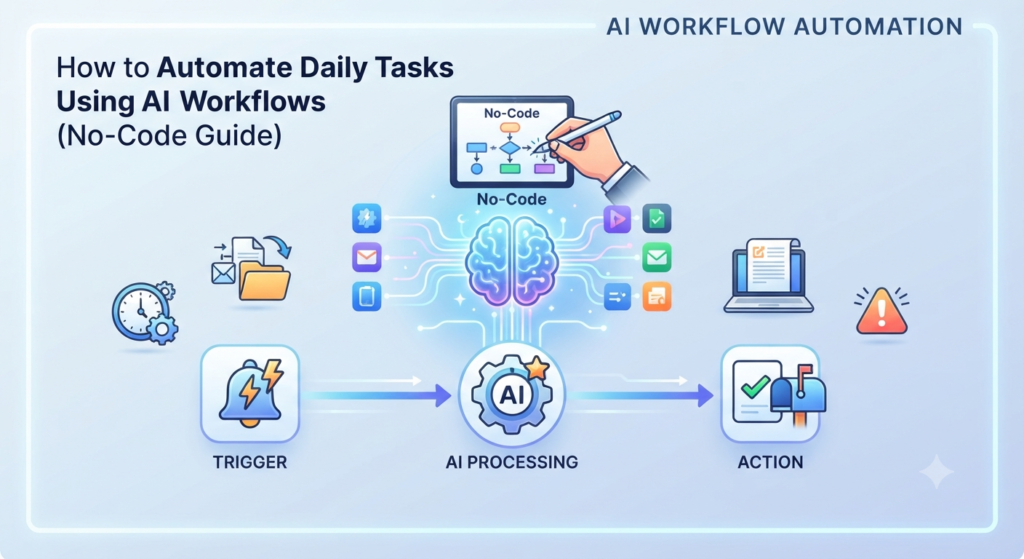
You don’t need to be a software developer or write complex Python scripts to fix this. Thanks to modern AI and visual builders, you can build smart automation systems without writing a single line of code.
In this guide, you’ll learn how to build your first no-code AI workflow to save hours every week.
What is an AI Workflow?
Traditional automation is “rule-based” (If this happens, do that). While useful, it breaks down if data isn’t perfectly formatted.
AI workflows add reasoning to the mix. Instead of just moving data, an LLM (like Claude or ChatGPT) can read an unstructured email, extract key points, summarize it, and decide what action to take automatically.
Top No-Code AI Automation Tools to Use
Before building, you need to pick a platform. The top tools making waves for no-code automation include:
- Zapier: The giant for standard app-to-app triggers, now heavily integrated with built-in AI steps.
- Make.com: Excellent for visual power users who want deep control over complex, multi-step branching logic.
- Gumloop: An AI-native platform designed explicitly for building visual AI agents and workflows (like automated web scraping, content pipelines, or research bots) using plain English.
Step-by-Step: Building Your First AI Workflow
Let’s build a simple, highly practical workflow: An AI assistant that reads incoming form submissions or emails, summarizes them, and drafts a response.
Step 1: Choose Your Trigger
Every automation starts with a trigger.
- Example: A new row is added to a Google Sheet, or a new submission lands in your website contact form.
Step 2: Add the AI Reasoning Step
Instead of sending raw text straight to your inbox, route that data through an AI block (using platforms like Zapier AI or Gumloop):
- Write a prompt directly into the builder:“Analyze the following user query. Extract their core problem, categorize it into [Bug, Feature Request, or General Inquiry], and write a polite, concise first-draft reply.”
Step 3: Set the Action (The Output)
Tell the platform what to do with the AI’s output:
- Have it automatically sent as a draft to your Gmail.
- Or log the categorized feedback directly into a Notion database or Airtable sheet.
Best Practices for Successful Automation
- Start Small: Don’t try to automate your entire business or study schedule on day one. Pick one annoying, repetitive 15-minute task and build a flow for that.
- Always Keep a Human-in-the-Loop: When using AI to send emails or publish text, set the action to create a draft rather than publishing or sending live instantly. Review it until you trust the automation’s accuracy.
Wrapping Up
No-code AI automation bridges the gap between raw AI models and your actual daily routine. By setting up just one or two of these workflows, you can reclaim hours of your week to focus on building, studying, and creating.